Playbook · Google Sheets · 25 min
Build an influencer campaign tracker in Google Sheets that fills itself
Any team that runs campaigns from a spreadsheet and is tired of pasting numbers into it.
Set up four tabs: Scouting (handles and fit), Outreach (who was contacted, when, status), Deliverables (one row per agreed post with its link) and Report (formulas over the other three). Zaver fills the numbers: the add-on writes followers, engagement, reach and bio next to any column of handles, writes likes, comments, plays and views next to any column of post links, logs every outreach email it sends, and the scheduled Radar tools refresh those columns daily or weekly. You keep status, next action and spend. Everything else updates itself.
You need
- A Google Sheet
- The Zaver.one add-on connected with a Radar API key
- Growth or Scale plan if you want scheduled refreshes
Step by step in Zaver
- 1
Create the four tabs
Scouting: Handle, Fit notes, Status. Outreach: Handle, Email, Status, Next action, Date. Deliverables: Creator, Agreed post, Link, Due, Spend. Report: left empty for formulas. Freeze the header rows.
- 2
Connect the add-on
Extensions → Zaver.one → Activation Settings → paste a Radar API key from Settings → Developer → Connect.
- 3
Fill the Scouting tab
Select the Handle column, Extensions → Zaver.one → Profile Analytics → Analyze selected profiles. Eight columns land: Username, Name, Followers, Engagement Rate, Avg Likes, Avg Comments, Avg Reach, Bio.
- 4
Fill contacts on the Outreach tab
Enrich the shortlist in Radar (/enrich) and paste the emails, or ask your assistant to enrich contacts for the handles. Only published contacts come back.
- 5
Send and log outreach
Select rows with an Email column, Extensions → Zaver.one → Email Outreach → Send Personalized Emails. Pick a template, merge {{Name}} and {{product_name}}, send from your Gmail. Each send is logged to an Email Reports tab: email, name, subject, date, status.
- 6
Fill the Deliverables tab as links come in
Paste each live link. Select the Link column, Extensions → Zaver.one → Post Analytics → Analyze selected posts. Posted By, Type, Likes, Comments, Plays, Views and Caption land beside it.
- 7
Schedule the refresh
In Radar: Google Sheets → connect this sheet (share it with the service account once). Tools → Profile metrics → Google Sheet on the Scouting tab weekly; Tools → Post metrics → Google Sheet on the Deliverables tab daily. Email on completion.
- 8
Build the Report tab
Per creator: spend, views, likes, comments from Deliverables; cost per view = spend / views; cost per engagement = spend / (likes + comments). Campaign totals are SUMs. The numbers under them refresh themselves.
Or ask it in ChatGPT or Claude
With Zaver connected as an MCP server, the whole job is one message. Your assistant calls run_data_tool behind the scenes.
refresh profile metrics on my Scouting tab every Monday and post metrics on my Deliverables tab every morning at 8Not connected yet? Set it up in about a minute.
In Google Sheets
Single cells can pull live numbers too, for example a KPI tile on the Report tab.
=ZAVER("https://www.instagram.com/reel/…", "views")Where it is in Google Sheets
The menu path, step by step. Labels match the Zaver.one add-on.
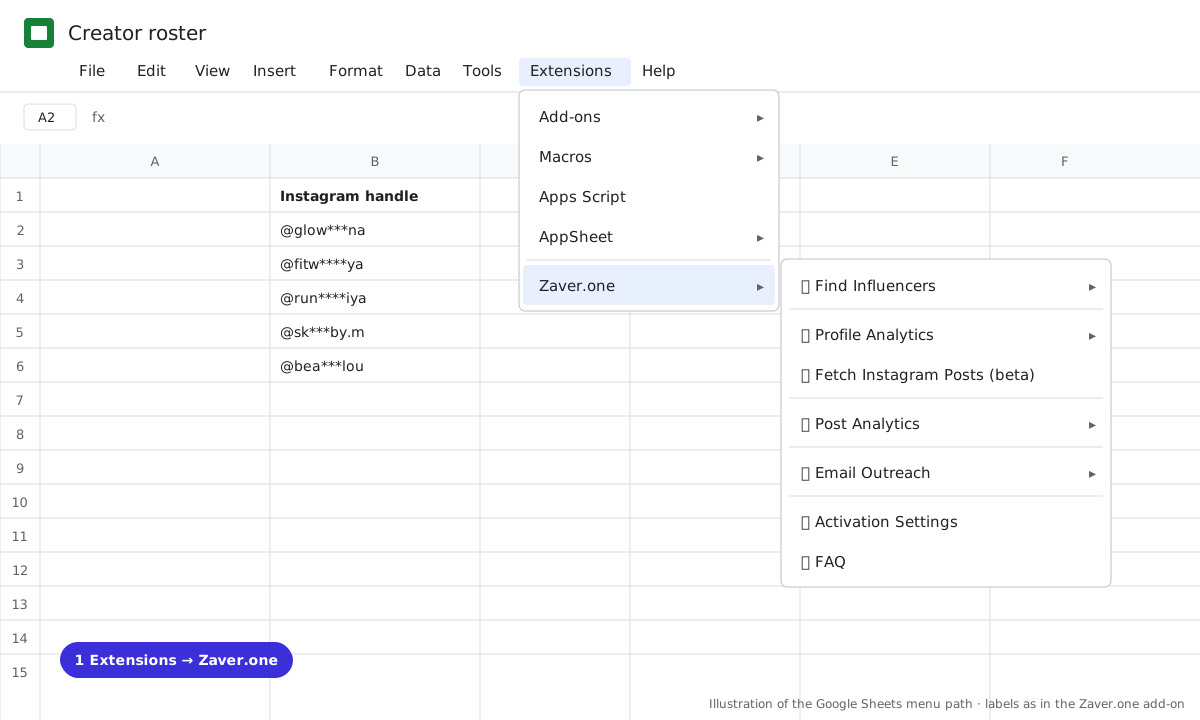
1 Extensions → Zaver.one. Every add-on action starts here. 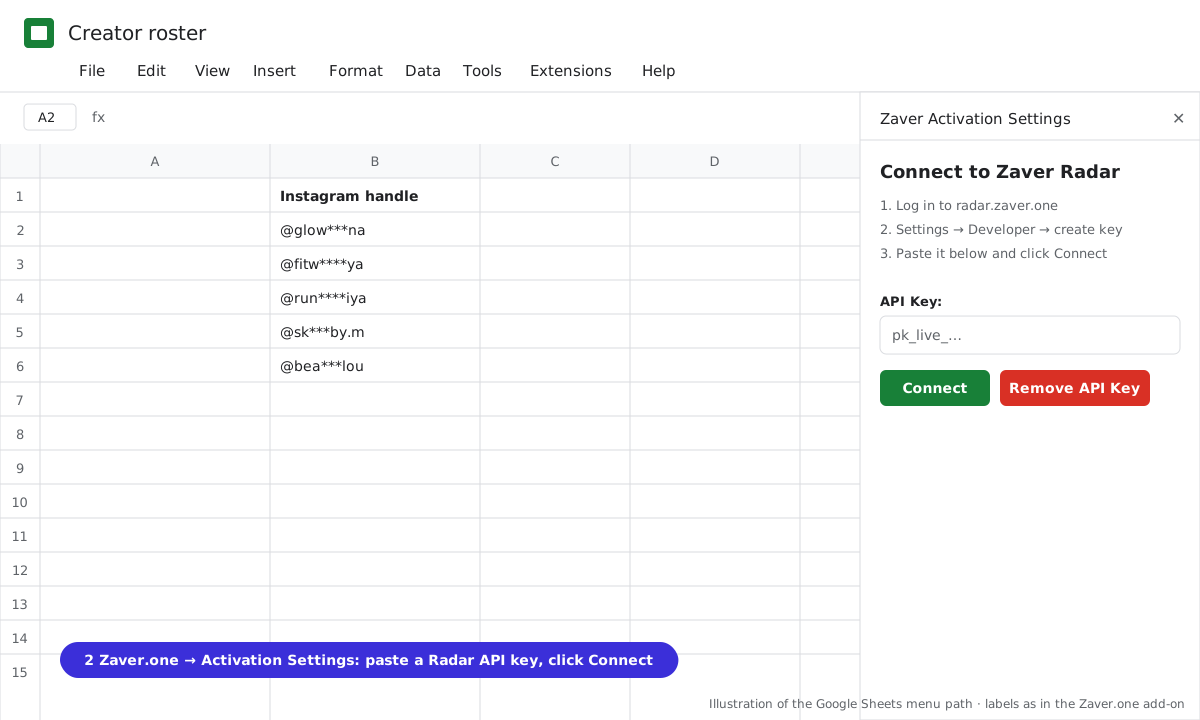
2 Zaver.one → Activation Settings: paste a Radar API key, click Connect. 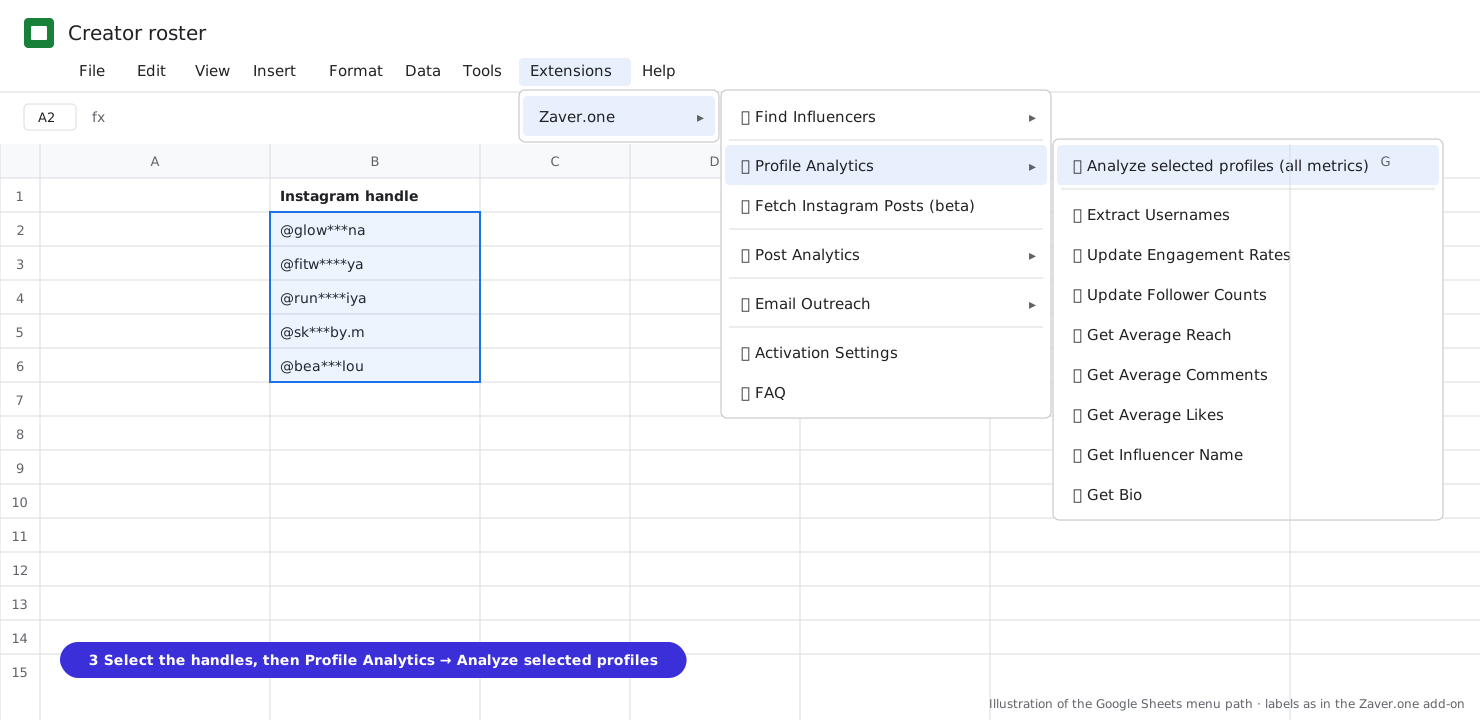
3 Select the handles, then Profile Analytics → Analyze selected profiles (all metrics). 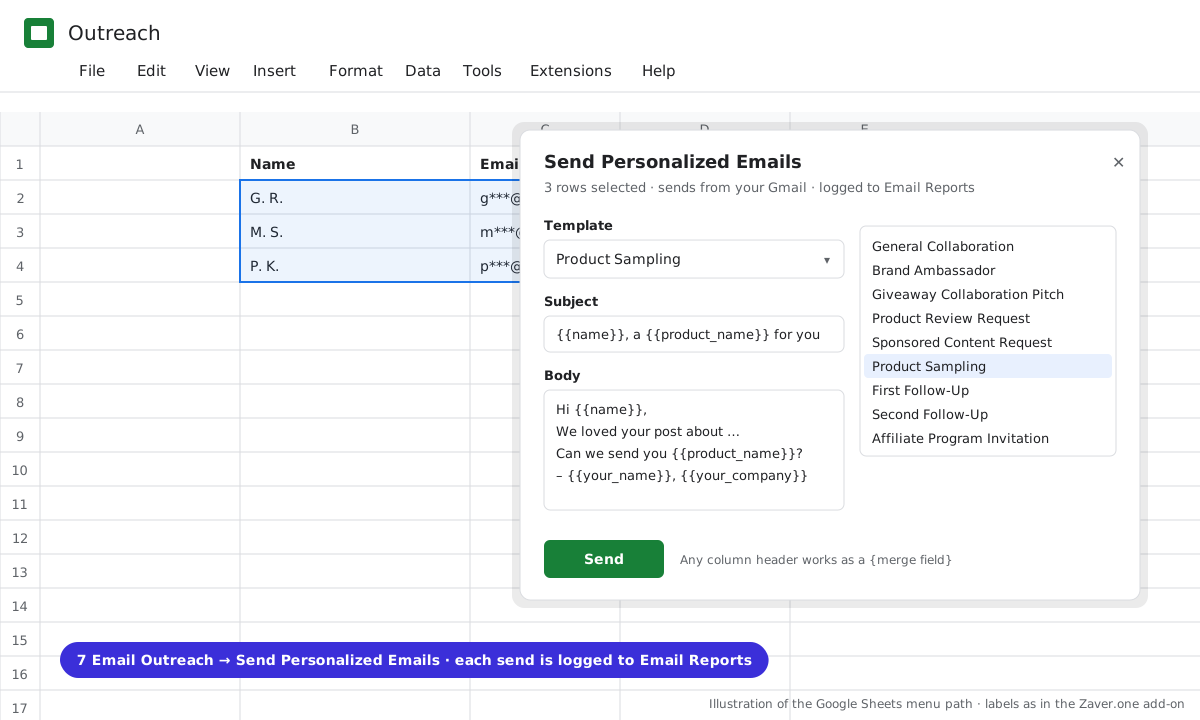
4 Email Outreach → Send Personalized Emails: pick a template, merge {{columns}}, send from Gmail; every send is logged. 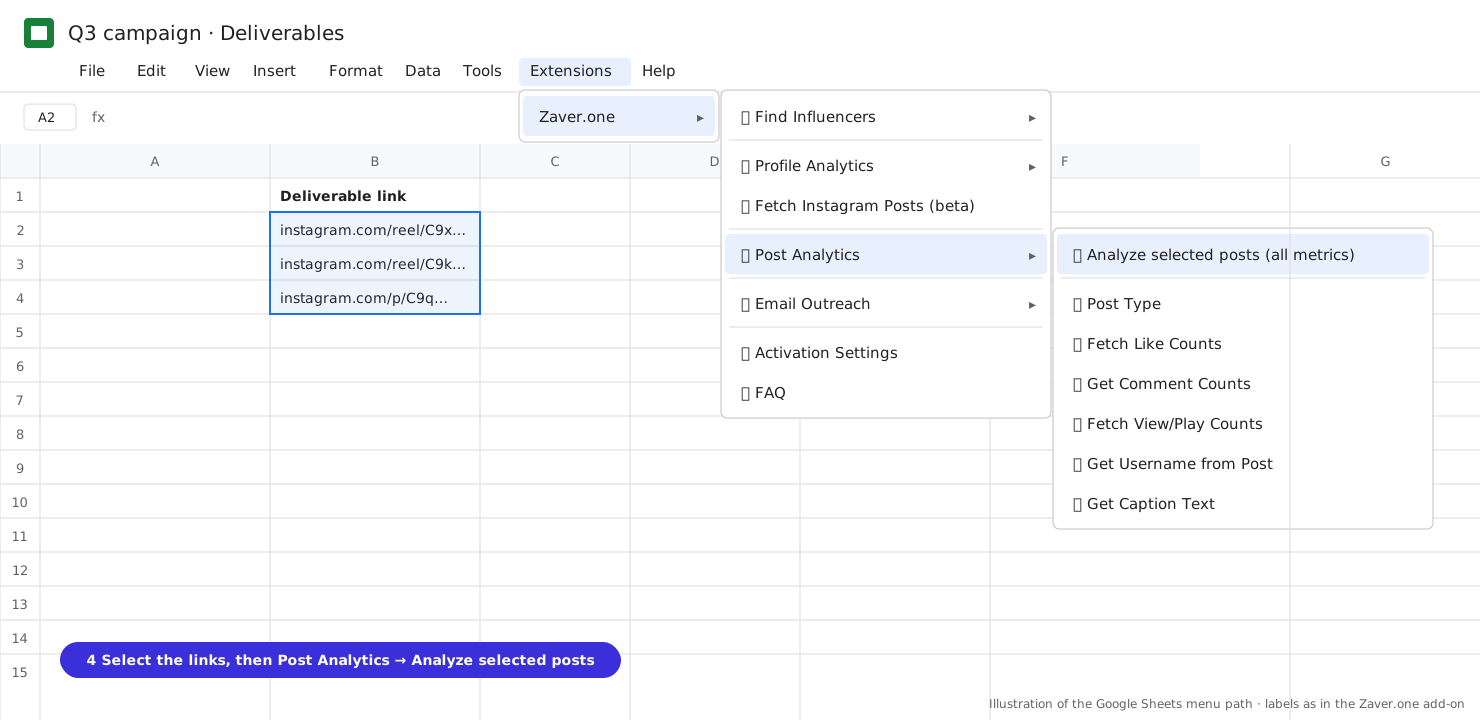
5 Select the post links, then Post Analytics → Analyze selected posts (all metrics). 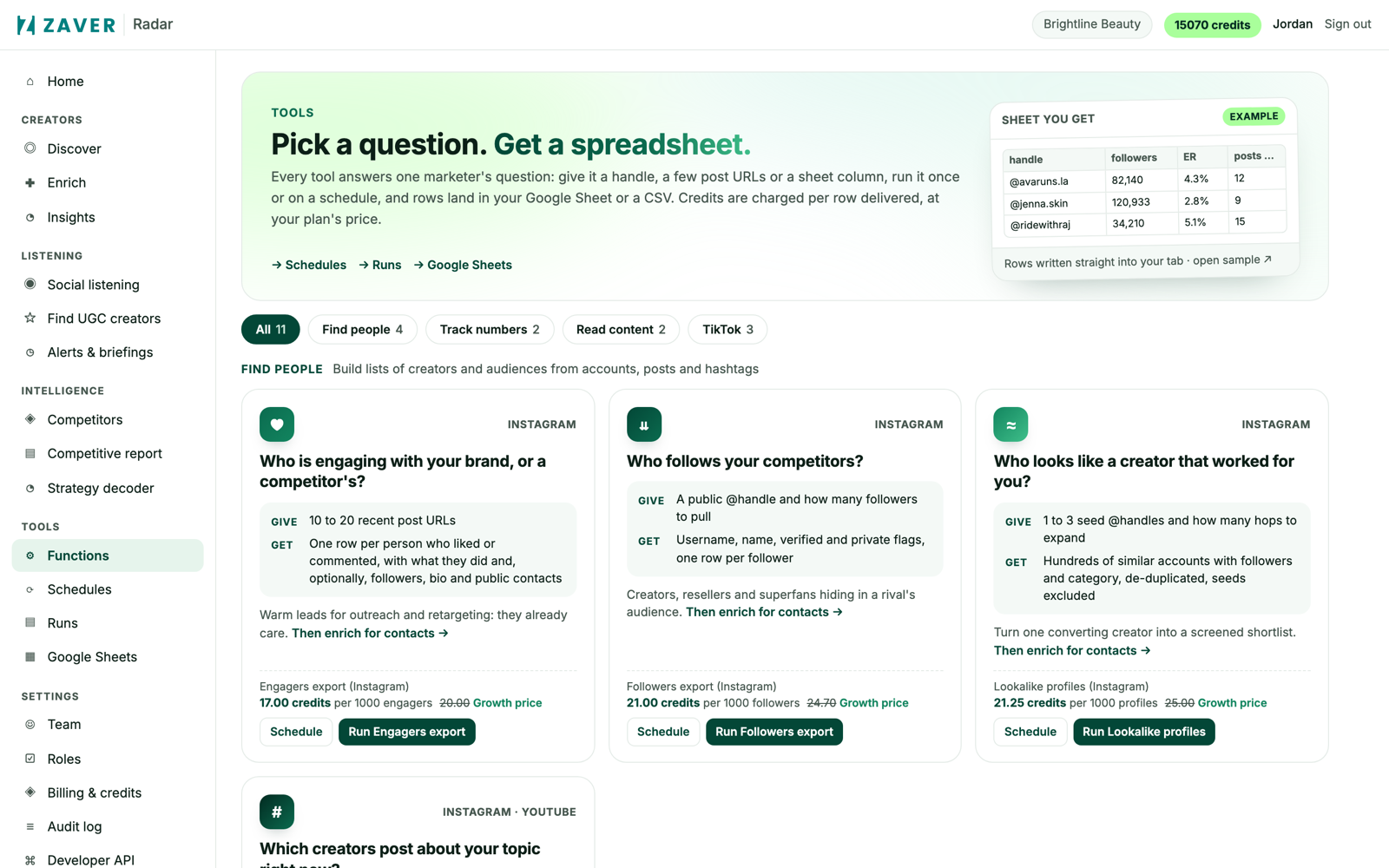
6 Radar → Tools: every tool runs once or on a schedule, and can write into a connected Google Sheet.
What you get
Input: Report tab · 8 creators · daily refresh
| Creator | Spend | Views | Engagements | Cost / view | Cost / engagement | Status |
|---|---|---|---|---|---|---|
| @glow***na | $1,000 | 112K | 10.4K | $0.009 | $0.10 | posted |
| @fitw****ya | $1,400 | 84K | 6.5K | $0.017 | $0.22 | posted |
| @run****iya | $350 | due 6 Nov |
The Views and Engagements columns refresh from the Deliverables tab; Spend and Status are yours.
Illustrative sample. Handles are masked; numbers show the shape of a real result, not a specific account.
Cost
Profile and post lookups per row on your plan, cached 6 hours. Scheduled refresh: 250 credits per 1,000 profiles, 150 per 1,000 posts; scheduling is free on Growth and Scale. Emails send from your Gmail.
Limits
- About 5 minutes per add-on run; select the rest and run again
- Email Outreach logs sends, not replies
- Revenue attribution needs promo codes or UTM links today; a Shopify integration for revenue attribution is coming soon
Questions
Can I keep my existing columns?
Yes. The add-on inserts new columns beside the selection and reuses matching headers on re-runs, so your own columns stay put.
What happens when a deliverable is not posted yet?
The row stays empty with a note; that is the row to chase. Once the link is live, the next refresh fills it.
Several people edit the sheet. Is that a problem?
No. One API key per sheet; every lookup is logged in the Radar audit log against the key, so credit spend is traceable.
Related playbooks
Turn your influencer scouting sheet into a live trackerAutomate influencer campaign reporting in Google SheetsMeasure an influencer campaign without a platformGoogle Sheets add-onAll playbooks